


 >

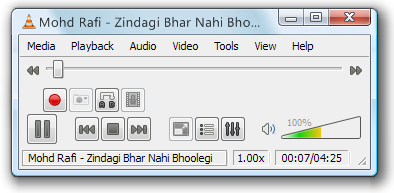
For most people, VLC is the favorite media player because it
plays everything they throw at it without hiccups. No hunting for codec.
But VLC can do a lot of other things as well. Find out how many of
these listed below you knew, and how many you did not.
1. Rip DVDs: VLC includes a basic DVD ripper. You probably would never use it when there are better DVD rippers available, but it helps to know that you can in fact, get a decent quality DVD rip with VLC. To rip a movie follow these steps:
3. Play RAR files: Do you know VLC can play videos zipped inside RAR files? They play like normal video files and you can even use the seek bar. If the RAR file is split into several files, no problem. Just load the first part (.part001.rar ) and it will automatically take the rest of the parts and play the whole file.
4. Play in ASCII mode: VLC media player has an amusing ability, to playback movies in ASCII art. To enable ASCII mode, open VLC media player and click on Tools>Preferences. Open the section “Video” section and under “Output” select “Color ASCII art video output” from the drop down menu. Save it. Now play any video file to enjoy the ASCII art.

5. Listen to online radio: VLC includes hundreds of Shoutcast radio stations. You just need to enable it through Media>Services Discovery>Shoutcast radio listings. Now, open the Playlist and browse through the stations.

6. Convert Audio and Video formats: In VLC you can convert video and audio files from one format to another. Several different formats are supported like MP4, WMV, AVI, OGG, MP3 etc. To access the converter:
Once VLC starts streaming the video, click Tools>Codec Information and at the bottom of the window you will see a Location box. Copy the URL and paste it on your browser’s address bar. The browser will now download the file which you can save it to your hard disk. Alternatively, you can record the video. (See #2).
1. Rip DVDs: VLC includes a basic DVD ripper. You probably would never use it when there are better DVD rippers available, but it helps to know that you can in fact, get a decent quality DVD rip with VLC. To rip a movie follow these steps:
- Go to the Media menu and choose Convert/Save. Click on the Disc tab.
- Here you can adjust the Starting Position and rip only specific titles or chapters.
- Enter file name making sure to end with .MPG, and start ripping.
- Click Save.
3. Play RAR files: Do you know VLC can play videos zipped inside RAR files? They play like normal video files and you can even use the seek bar. If the RAR file is split into several files, no problem. Just load the first part (.part001.rar ) and it will automatically take the rest of the parts and play the whole file.
4. Play in ASCII mode: VLC media player has an amusing ability, to playback movies in ASCII art. To enable ASCII mode, open VLC media player and click on Tools>Preferences. Open the section “Video” section and under “Output” select “Color ASCII art video output” from the drop down menu. Save it. Now play any video file to enjoy the ASCII art.
5. Listen to online radio: VLC includes hundreds of Shoutcast radio stations. You just need to enable it through Media>Services Discovery>Shoutcast radio listings. Now, open the Playlist and browse through the stations.
6. Convert Audio and Video formats: In VLC you can convert video and audio files from one format to another. Several different formats are supported like MP4, WMV, AVI, OGG, MP3 etc. To access the converter:
- Go to Media>Convert/Save.
- Load the file you want to convert using the Add button and click Convert.
- Now choose the output format and output file location.

Once VLC starts streaming the video, click Tools>Codec Information and at the bottom of the window you will see a Location box. Copy the URL and paste it on your browser’s address bar. The browser will now download the file which you can save it to your hard disk. Alternatively, you can record the video. (See #2).